
Thursday, 31 October 2013
Sunday, 27 October 2013
Are You Getting All You Could be From Google Plus?

Despite the fact that it's the fastest-growing social networking site around – and the one that might have the biggest potential going forward because of the support it gets from the world's most popular search engine – a lot of business owners, executives, and marketers just don't understand Google+ (also known as Google Plus or G+) as well as they would like to. In fact, many are a lot less familiar with Google+, and its features, than they are social sites like Facebook and Twitter that could have, arguably, less online marketing power.
In one sense, this is only natural. Google+ is still the newest of these sites, and its features and buzzwords change more rapidly than the others do. Still, if you're serious about generating leads from your business website, there isn't any excuse for failing to put together a comprehensive social media marketing plan, Google+ included.
With that in mind, here are some great tips for making the most of your Google+ profile:
Fill in the blanks.
This is good advice for any social media platform, but especially one that's growing as quickly as Google+ is. Make sure you've filled out all the important sections, with a current photo and searchable keywords to match.
Make the most of your hovercard.
This is the "snapshot" people will see about you and your work when they mouse over your identity. For that reason it should have a quick, compelling bio matched with a professional, inviting photo. This might be your one and only chance to get someone to follow you, so put your best virtual foot forward.
The best Google+ profiles aren't the ones that read like bland corporate descriptions. Instead, they have all of the basic facts, but also hint at a bit of expertise, and maybe even a little bit of passion. Post the kind of profile that would make others want to meet you, not just one that shares the basics.
Make your Google+ page easy to find.
Your website, blog post, and other forms of content should all have links and invitations that point to your Google+ page. Over time, the right people will figure out exactly where to find you.
Let your ideas come full circle.
Circles are a great forum for sharing thoughts and ideas. Don't just join circles relevant to your business or industry, invite others that you would like to connect with to participate in them, too.
Know the contacts you're trying to meet.
We've written a lot about marketing personas lately, but it's worth bringing them up again with relation to Google+. When you know what kinds of customers you want to meet, you can put together your content and updates in a way that appeals to them.
Join relevant discussions and hangouts.
As with LinkedIn, a lot of the real action on Google+ doesn't take place near your profile, but in relevant discussion groups and hangouts. Join these and be active, but concentrate on sharing ideas rather than marketing pitches – if people want to know more about your work, they'll connect with you and ask.
As your Google+ following grows, you can use your profile to promote blog posts, content, and offers from your website. Just be sure you don't go overboard and blanket your contacts with solicitations.
In essence, the best way to use Google+ is the same way you would any other social media platform. But, before you can do that, you have to understand how things like circles, hovercards, and hangouts work, which takes a little bit of time and effort.
If you feel like you can't make the time to master Google+ and make it part of your online strategy, just remember that more and more of your potential customers are flocking to the site… and if they aren't finding you there, you can be sure they're running into some of your competitors.
Sunday, 20 October 2013
How To Create A YouTube Channel
If you learned that two video game geeks from England have made more than $6 million off their low-budget YouTube channel, you might be wondering how to create a YouTube channel. There are plenty of reasons other than earning money from YouTube to make your own YouTube channel – it’s also a great way to establish yourself in the film and video field, you can become a recognized subject matter expert on your topic of choice, while a new business or worthy charitable cause can use a YouTube channel to create gobs of free publicity. Setting up a basic YouTube channel is quite simple. If you want to create a YouTube channel that really grabs viewers’ attention, you can create your own YouTube channel art, make a customized page layout, or create a preview video that gives viewers a taste of what makes your YouTube video channel so awesome.
The way YouTube is set up these days, you are required to create a channel if you want to upload a video to YouTube or leave comments on another YouTube video. In fact, you might already have a YouTube channel. If your name or nickname displays under the YouTube icon on the left side of the screen when you visit the YouTube home page, your channel has already been created. If your name does not display, you might not have a YouTube channel – but creating one is easy and takes only a few minutes.
10 STEPS TO CREATE A YOUTUBE CHANNEL
Before you get started creating a YouTube channel take a minute to pick the name you want to use for your channel. Now that Google owns YouTube, maintaining your privacy on the platform is not particularly easy. If you have privacy concerns, you may not want to use your real name. Changing your display name is time-consuming – and technically, you cannot change your name on YouTube. Instead, you must change your Google identity, which requires having a Google+ profile. It is actually easier to create a YouTube channel than to change your name on a YouTube channel!
Now that you’ve picked a channel name, here’s how you can create a YouTube channel. Visit YouTube.com on your web browser, and then complete the following steps:
1. Click the blue Sign In button on the top right of your screen. The YouTube sign in page will appear.
2. If you have a Gmail account, sign right in with your Gmail username and password (and then skip to No.
9 on this list). If you don’t have a Gmail account, click the red Create an Account button at the top
right. The Create a new Google Account screen will appear.
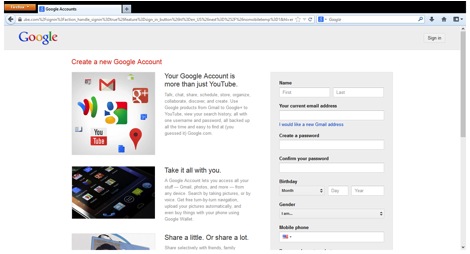
3. Fill in the Name, Your current email address, and all the fields on the right side of the screen.
Unfortunately, each of these fields is mandatory for creating a channel.
4. Check the box at the bottom of the page to agree to the Google Terms of Service.
5. Click the blue Next Step button at the bottom of the page. The Verify Your Email Address screen will
appear.
6. Click the blue Verify Now button. The Your Profile setup page will appear. (You may be asked to
respond to an email or text message before the page appears.)

7. You can Add Profile Photo at your convenience. To continue, click the blue Next Step button. A
Welcome screen will appear.
8. Click the blue Back to YouTube button. You will be redirected back to YouTube.

9. In the top right corner of you screen, you will see your name, a photo icon and a small triangle. Click the
small triangle. A set of YouTube and Google Account options will appear below.
10. Under the YouTube options click the My Channel link. Congratulations, your new YouTube channel
will appear!
Once you create a YouTube Channel, you’ll notice that you’ll be able to keep track of all your video activity, including videos that you’ve liked or music playlists you’ve saved.
HOW TO CREATE CHANNEL ART FOR YOUTUBE
You’ll notice an unattractive gray area at the top of your YouTube channel page. You can turn this unattractive gray area into a catchy and alluring image. Uploading an image is easy – just click the Add Channel Art button in the center of the screen, drag an image into that field and click the Select button.
The part that’s not easy is getting your channel art to look good across multiple computers, tablets and smartphones. Each of these platforms displays your channel art images differently. YouTube does offer a handy set of YouTube channel art tips that explains the differences between these displays, and how to best format your image to satisfy these requirements. If you want to make sure there won’t be any formatting issues across multiple screens, create a 2560 x 1440 px image that fits into the YouTube art template that can be found on the YouTube tips page. Then drag and drop that image into the gray bar on your YouTube channel. If you’re not feeling so inspired, you can find some great sample channel art and templates at YourTubeTheme.com and MyTubeDesign.com. Read more here:
http://www.real.com/resources/create-youtube-channel/